-
Zoom Out
Have you heard the expression “context is king”? It’s very true if you work with teams because many of the things that can affect a team negatively can be found outside of the team itself. How good is your understanding of your team’s context?
When the world around our teams is messy, it’s natural to latch onto the smaller and local, team specific, questions and shield ourselves from the complexity that surrounds us. In the worst case, we end up with a powerful “illusion of progress”: we work hard and efficiently in our own bubble, but ultimately we fail anyway.
-
The Value of Recreational Programming
I wasn’t a professional programmer for very long, just a few short years at the beginning of my career. I did a little bit of UI development for a sample preparation robot. I created a bunch of XSLT sheets for a content management system. I fixed up a training and diagnostics software for a DNA analysis machine. Not trivial things, but not too complicated either.
I constantly struggled with how hard and lonely it felt. Mob programming was not yet a thing and neither was pair programming - in the companies I worked for (even though others where doing it, since this was the early 2000:s). The other developers I worked with, or maybe “worked near” would be a better choice of words, all seemed content with doing their own thing, on their own. I felt constantly incompetent, most likely because I was. Still, I remember those years fondly, because programming can actually be fun. It was just that I hadn’t yet discovered what it takes to make it so.
-
Some Pitfalls In Experiential Training
Training classes using an experiential approach has more and more become the norm in agile leadership trainings. Check if some of these pitfalls are something you need to design around as you prepare your next class.
Many trainers in the agile world are really good at using interactive exercises to engage participants. I’ve been a teacher in many different kinds of classes over the years. In the mid nineties I worked extra during my studies teaching evening sessions on how to office software. And photo editing. For a brief period I did some training in a content management suite for a client at various sites.
-
Learning About S3
Sociocracy 3.0, or S3 for short, is a collection of principle-backed patterns for more effective collaboration. It can be seen as an attempt to reduce hierarchy while at the same time providing an alternative type of structure.
This week I’m attending a three day workshop about sociocracy 3.0, or just S3 for short. The idea of sociocracy has apparently been around for a very long time. The class I’m attending is focused on “S3”, created by James Priest and others as a continuation of the idea of sociocracy.
-
Rolling Out Scrum - How Hard Can It Be?
The belief that an idea like Scrum can be easily and predictably rolled out in an organization is still wide spread. It’s a tempting fantasy and a potent recipe for problems. Scrum is not about installing best practices - it is about activating curiosity, using all of the brains we do have, and giving experience and reflection some room to work their magic.
- ”This shouldn’t be too hard”, said more than one of my prospective clients. You’ve probably heard it too. After all, how hard can it be to ”roll out Scrum”? Isn’t it just about having regular planning sessions, a backlog, and maybe a retrospective every now and then?
Well, to begin with, Scrum is much more than meets the eye. Beyond the seemingly simple practices hide lots of challenges. Take the idea of having a single prioritized backlog. Sounds like common sense, right? Now imagine succeeding with this when you have five different managers who all want to have their stuff done first.
-
Efficiency Is Not the Only Value
Not too long ago I was teaching a class at a client company. During the morning of the second day of the class, I had reserved a block of time for diving into some of their specific challenges. I usually do this, because while I have an agenda I’m supposed to cover, I know that one of the most important parts of learning new things is discussing how to apply the new knowledge and skills in your own unique context.
-
Introducing: a Software Development Canvas
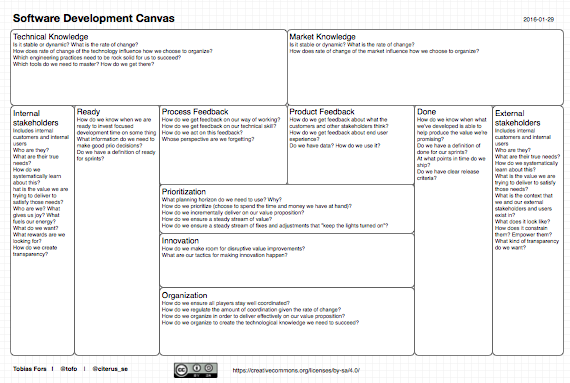
Those who know me know me or have taken one of my classes know of my keen interest in helping people go beyond method - towards a deeper understanding of why we are getting the results we are getting. Lately, I’ve been working on a thinking tool that might help in that regard.
First, a little background. While most of the world is still struggling with doing basic-effective-thermostat-Scrum, we more and more often find organizations that have come to a state where the choice of framework is not that interesting any longer. Much of the agile mindset is there, but as always many challenges remain. In that situation, trying to “do better Scrum or Kanban” isn’t really that fun. It feels like going backwards (even wouldn’t be for many). Anyways, I like options, and this is one attempt to create one more option for how to approach the discussion around how we work.
-
Why Task Assignment Sucks
You may be like me. Some things at work suck the life out of me. I can’t always explain why. Most of the time I can learn to live with it, and therein lies the crux. I accommodate things that I really should refuse outright. Here’s one such thing: task assignment. See if you agree.
Assigning tasks. Also known as the age old habit of telling others what to do. Try to go a day without doing it. It’s pretty hard, especially if you have kids. Probably also hard if your title includes the word manager.
-
Bringing In an Agile Coach
Agile coaches are everywhere these days. The nice thing about that is that agile has become so popular. The sad thing is that there is now a greater risk that you end up a with an agile coach that doesn’t really make things better for your company. Here’s what you need to think about before you bring in an agile coach.
There are so many different ways of defining what an agile coach does that to hire one, you need to be really clear about what kind of help you’re looking for.
-
Copy-Paste Management
Developers sometimes engage in copy-paste development. If you’ve never written code, this is when a developer copies, pastes and possibly slightly modifies some existing code - instead of following the cleaner practice of reusing the code by (for example) turning it into a single function that can be called from multiple places.
Copying and pasting is very seductive. Developers know that it’s not a good long term solution, but in the short term it’s just so quick. It worked there, so it should work here.
-
Shallow Success, or The Story of The Kidnapped Trophy
Did you know that there was once a project manager that successfully delivered a project on time, on budget, and according to specification? Don’t be surprised if you haven’t heard the story - it turned out quite embarrasing in the end, so it might have been covered up a little bit. Here’s what happened.
After hearing about the project manager’s uncommon feat, the project management community was so astounded that it was decided that an official recognition was in order. The yearly gathering of project managers seemed like a suitable venue, and so plans were made and a suitable trophy was commissioned.
-
Prioritizing Effectively as a Team
My new article “Prioritizing Effectively as a Team” is up on AgileConnection.com. The article starts out like this:
“A common reaction to the product owner role is to see it as too big for a single person. If the idea were that one person should do everything from guiding the vision to writing user stories, I would agree. But that’s not how I see the role; I see it as one component in getting to effective teamwork.”
-
The Birth, Death, and Rebirth of Ideas
Watching the waxing and waning of software development methodologies made me think about the lifecycle of ideas. Throughout the ages, humans have come up with ideas. Some ideas never become more than a thought. Others spread globally, affecting people for a long time. The life of ideas seems to be an eternal cycle of birth, life, death, and rebirth.
The Spark
Who can tell where ideas come from? Suddenly they appear. Sometimes we can trace their origin, backtracking through threads of thoughts and experiences. Sometimes, they seem to materialize out of thin air. At times, we can clearly see how an idea grew on top of another. At other times, the idea seems to be radically, even inexplicably, groundbreaking. We can be sure of two things: as long as humans exist, ideas will keep coming, and as long as humans exist, we will often look with suspicion at new ideas - or be strangely attracted to them.
-
Managing as Helping
Are you a manager, or maybe an informal leader with implicit influence and responsibility? Have you considered how you think about your role? Have you considered thinking about yourself as a helper?
If you’re reading this, chances are you’re working in a knowledge-based organization: an enterprise that builds its success on being able to convert human motivation into creative ideas, and then use the best of those ideas to develop useful products and services.
-
The Worst Daily Scrum Ever
I once observed what was probably the worst daily scrum ever. Just when I thought it was over, something interesting happened.
Visiting a team in an organization I worked with, I got to see one particular scrum master run a daily scrum – into the ground. This is the story of how he did that - but it’s also the story of how the team miraculously survived this train crash of a meeting.
-
What Is an Advanced Scrum Master?
Being a scrum master is more than just reminding a team to perform certain ceremonies, it’s about growing the best possible workplace.
To begin with, let’s clarify this whole thing about the “scrum master”. It’s the name of a role. It’s a relatively new and pretty ridiculous name by intent, because a change was needed in how we lead development work.
Every now and then we shake things up by inventing new names. Just remember that behind the term “scrum master” is the timeless idea of the servant leader. Someone who is there not to exert power over others, but to give power to others. To empower them.
-
Broken Software
I sometimes hear the agile manifesto being criticized for focusing on “just working software”. It’s said that working software is not enough, that we need to reach further. I agree that we need change, but not in the wording.
If your definition of working software is “if it compiles, ship it”, then the manifesto’s words won’t seem like they change much. For you, the manifesto sounds like business as usual.
Twelve years after first reading it, the agile manifesto still doesn’t sound like business as usual to my ears.
-
Check-in in a Circle
When I kick off a class or workshop, I want participants to engage as soon as possible after entering the room. I do work through some practical bits first, but after that I quickly hand things over to participants.
For a long time, I’ve been using an opening exercise I learned from Ken Schwaber. In it, I ask participants to sort themselves along a line in the room, according to different criteria.
-
The Freedom to Solve Problems
Isn’t it really sad that employees in some companies aren’t allowed to solve the customers’ problems? In Sweden, the major telecom operators are notorious in this regard, in my personal experience.
What is it like in your company? Is everyone allowed to and capable of really helping your customers?
“In addition to encouraging creativity, bossless environments also increase efficiency, according to Stephen Courtright, a management professor at Texas A&M’s Mays Business School. He cites the example of Southwest Airlines, which allows baggage clerks the freedom to decide how to solve a customer’s complaint on the spot, without having to say, “‘Wait while I consult my boss.’”
-
There's Always One [Drop|Comment|Question] Left
My childhood friend’s mother was a “dagmamma”, literally, a “daytime mother”. In other words, she took care of a bunch of other people’s kids in her own home.
She was a very kind and intelligent person. One of the things she said has stuck with me to this very day.
“There’s always one drop left.”
She would say this when we had had finished our “fika” (for kids in Sweden, this would be strawberry juice and cinnamon buns) and we would start playing with our empty glasses. Or rather: we thought the glasses were empty, but she knew better. That’s why she reminded us.